
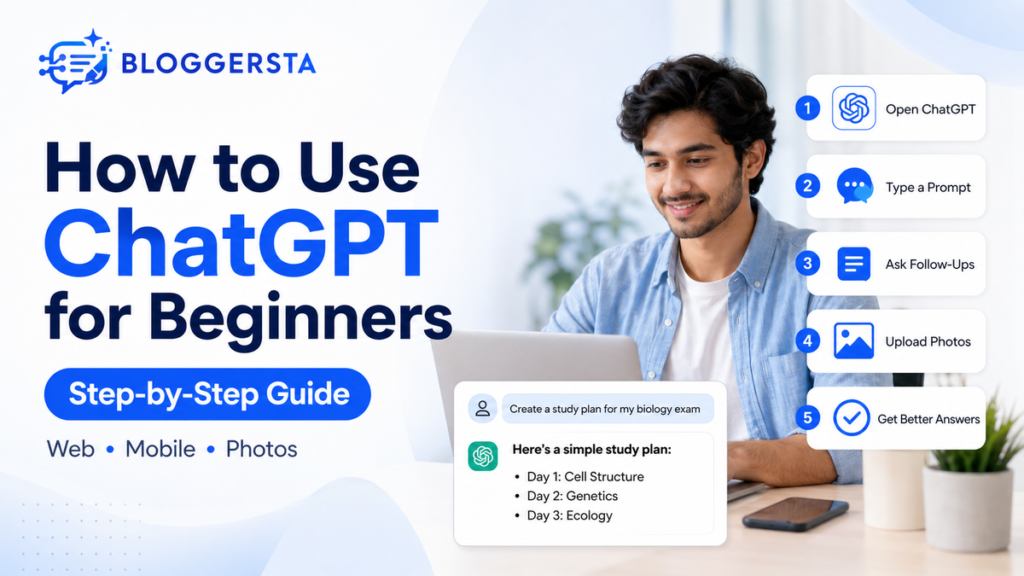
Starting ChatGPT can feel confusing when prompts, account choices, unfamiliar buttons and new AI tools appear together. OpenAI reported more than 900 million weekly active users in February 2026. So, how to use ChatGPT for beginners without feeling lost?
ChatGPT becomes easier when you treat it like a helpful assistant, not a magic search box. Asking it to “handle everything” resembles giving a new coworker no brief and expecting perfect work. This guide covers first prompts, mobile use, photos, image editing and privacy.
Quick Answer
To use ChatGPT as a beginner, open ChatGPT on the web or install the official app. Type a clear request, review the answer and ask follow-up questions. You can use the free tier, try signed-out access where available, upload photos and create or edit images. The steps below explain each feature simply.
What is ChatGPT and What Can It Do?
ChatGPT is a conversational AI assistant created by OpenAI. It answers prompts, explains ideas, rewrites content organizes information and works with files or images.
You can use ChatGPT to:
- Answer questions in plain language
- Rewrite or summarize text
- Brainstorm names, topics or ideas
- Create schedules and checklists
- Review uploaded documents or photos
- Create and edit images
ChatGPT can misunderstand instructions or provide inaccurate details. Treat important answers as a starting point, then verify names, dates, statistics and sources.
[Also Read: What is Prompt Engineering? A Beginner’s Guide to Better AI Prompts]
How to Use ChatGPT for Beginners Step by Step
Begin with one small task. You do not need coding skills, technical language or a complicated prompt formula.
Step 1: Open the Official Website or App
Open ChatGPT in a browser or install the official app from your device’s store. Confirm that OpenAI appears as the publisher because imitation apps may use similar names.
The official ChatGPT app is available for iPhone, iPad and supported Android devices.
Step 2: Create an Account or Continue Without Login
ChatGPT allows signed-out use in supported locations. You can send a prompt immediately, though only one conversation remains available during that browser session. Starting another chat removes access to the first one.
An account saves chat history and lets you continue conversations across supported devices. Guest access is still rolling out, so some locations may require sign-in.
Step 3: Write Your First ChatGPT Prompt
A prompt is the request you send to ChatGPT. Clear prompts describe the task, context and preferred format.
Vague prompt:
Help me study.
Better prompt:
Create a five-day biology study plan. I have one hour each evening. Cover cell structure, genetics and human anatomy.
The second prompt names the goal, available time, subjects and output. ChatGPT has fewer gaps to fill.
Step 4: Ask Follow-Up Questions
ChatGPT remembers the current conversation, so you can build on its answer. Try:
- “Explain that in simpler words.”
- “Give me another example.”
- “Turn this into a checklist.”
- “Make the response shorter.”
- “Show sources for factual claims.”
Follow-ups are normal. Like a conversation with a coworker, each question adds direction.
Step 5: Review the Reply and Start a New Chat When Needed
Check dates, names, quotations, calculations and instructions before using an answer. Start a new chat when the topic changes, earlier directions interfere or the conversation becomes confusing.
Beginner ChatGPT Prompt Examples
| Beginner Task | Example Prompt |
| Learn a topic | Explain photosynthesis for a complete beginner |
| Write an email | Write a polite email requesting a meeting next week |
| Plan a day | Create a Saturday schedule with exercise and study |
| Summarize text | Summarize this text in five simple bullets |
| Brainstorm ideas | Suggest ten low-cost birthday ideas |
[Also Read: 7 AI Writing Tools for Bloggers and Content Writers]
How to Use ChatGPT for Free and Without Login
ChatGPT is free to use. Its free tier currently includes standard chats, web search, file or image uploads, GPT access and image creation. Feature limits can change and free users may reach them sooner.
To use ChatGPT without login, open it in a supported browser and enter a prompt where guest access appears. Signed-out conversations remain available only during the current browser session. Create an account when you want saved history, shared chats and personal settings.
[Also Read: What are the Best AI Tools for Small Business Owners?]
How to Use ChatGPT on Mobile and iPhone
The mobile version works much like the web version, although some buttons appear elsewhere.
How to Use ChatGPT on iPhone
- Open the App Store.
- Search for OpenAI ChatGPT.
- Confirm that OpenAI publishes it.
- Install and open the app.
- Sign in or create an account.
- Type a prompt or start a voice conversation.
Open the top-left menu to view recent chats after signing in. Voice conversations are available to logged-in users through supported mobile apps.
How to Use ChatGPT on Android
Search for OpenAI ChatGPT in Google Play and confirm the publisher before installing. After signing in, you can send prompts, upload files, add photos and continue saved conversations.
A mobile browser also works when you do not want another app.
How to Use ChatGPT Photos and the Photo Editor
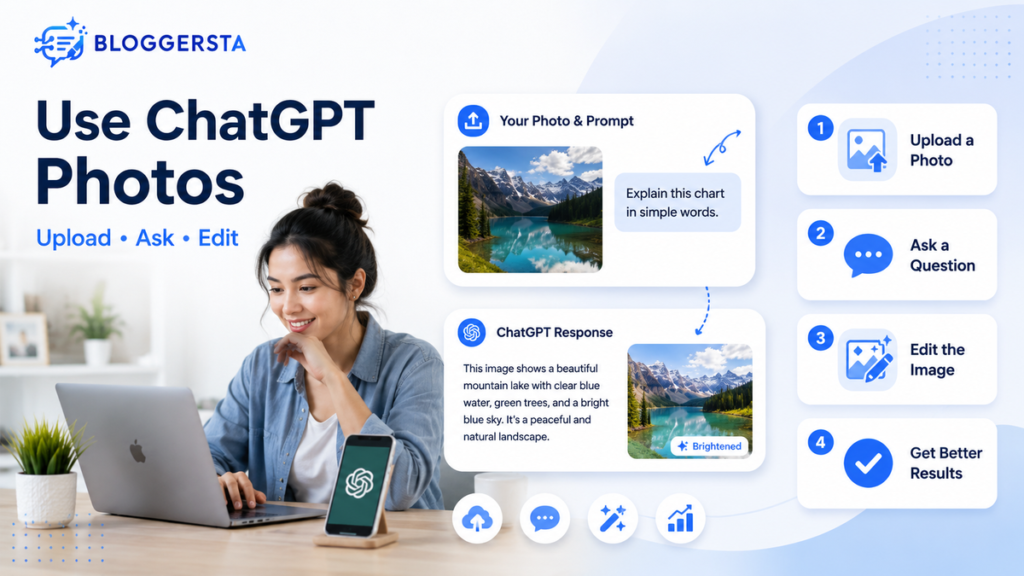
ChatGPT can inspect uploaded images and create or edit pictures from written instructions.
How to Upload and Ask Questions About Photos
- Open a conversation.
- Select the + or attachment button.
- Choose Add photos and files.
- Select an image.
- Explain what ChatGPT should examine.
Try prompts such as:
- “Read the text on this receipt.”
- “Suggest improvements for this poster.”
- “Explain this chart in simple words.”
ChatGPT supports image inputs on the web, iOS and Android. Clear images and direct questions usually produce better results.
How to Use the ChatGPT Photo Editor
Upload a picture or open an image created in ChatGPT. Then describe the change:
- Remove the background
- Replace the sky with a sunset
- Add a coffee mug
- Change the aspect ratio
- Make the lighting softer
You can request a general change or select a particular area first. Image creation and editing are available across ChatGPT tiers, though limits differ.
[Also Read: Best AI Tools for Graphic Designers Who Don’t Code]
Four Simple Rules for Using ChatGPT
No single official list covers every task. Still, four habits make prompts clearer and answers more dependable:
- Be clear: State exactly what you need.
- Add context: Name the reader, goal or situation.
- Set limits: Request a length, tone, structure or deadline.
- Check the answer: Confirm important facts through trusted sources.
Use this formula:
Task + Context + Requirements + Output Format
Example:
Explain compound interest to a teenager in 100 words using one everyday example.
How to Use ChatGPT Safely
Do not enter passwords, banking details, private client records or confidential workplace files. You remain responsible for deciding what to share.
Follow these habits:
- Verify medical, legal and financial guidance.
- Check factual claims before publishing.
- Use Temporary Chat when you do not want a conversation in history.
- Review Settings → Data Controls.
- Turn off Improve the model for everyone when preferred.
Temporary Chats do not appear in history, create memories or train OpenAI’s models. OpenAI may keep them for up to 30 days for safety review.
FAQs
How Do I Start Using ChatGPT?
Open the official website or mobile app. Type a clear request into the message box and send it. Read the reply, then ask follow-up questions when you need simpler language, more detail, another format or supporting sources.
What are the Four Rules for ChatGPT?
The four practical rules are clarity, context, limits and verification. Explain the task, add relevant background, request a clear format and check important claims. Specific directions usually work better than long prompts filled with unrelated details.
Which AI is Better Than GPT?
No AI is best for every task. Quality depends on the model, available tools, cost, request and working style. Compare assistants by giving each one the same real assignment rather than trusting a general ranking.
How to Start ChatGPT on WhatsApp?
Official WhatsApp access is currently listed for the European Economic Area and may depend on the phone number’s country code. Where supported, message the verified 1-800-CHATGPT contact at +1-800-242-8478. Elsewhere, use the official website or app.
Availability checked: July 2026.
How to Make Images with ChatGPT for Beginners?
Describe the subject, setting, style, colors, text and aspect ratio. For example, request “a clean square logo with a blue mountain at sunrise.” Review the first image, then ask for one specific change at a time.
Is It Safe to Use ChatGPT on WhatsApp?
It can be safe when you use the verified contact and avoid sensitive information. Check important answers because mistakes remain possible. WhatsApp access is region-dependent and its limits may differ from the main app.
[Also Read: What is Jasper AI? A Simple Guide for Beginners and Marketers]
Final Thoughts
ChatGPT becomes easier once you stop treating it like a search box and start giving clear instructions. This guide showed how to use ChatGPT for beginners across the web, mobile apps, iPhone, photos and image editing. Begin with one simple task, add context, request a format and review every answer carefully.
Free access is enough for learning, although usage limits may apply. Never share sensitive information or trust major claims without checking them. Open ChatGPT today, enter one practical prompt, ask a follow-up question and compare the result. A few minutes of practice will build confidence quickly for new users.