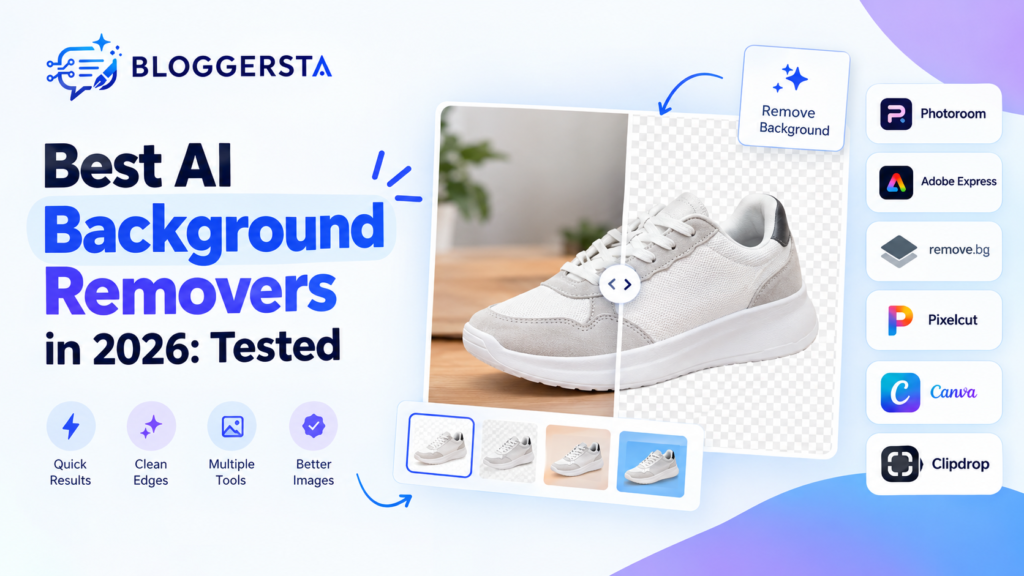
Removing a photo background once required careful masking and patience. Today, an AI background remover can isolate a subject within seconds.
That speed matters for ecommerce stores, social graphics, and content campaigns. Baymard research found that 56% of users first explore product images on e-commerce product pages. Its research also found that 25% of sites provide insufficient image resolution or inadequate zoom. Google says Lens now handles nearly 20 billion visual searches each month, with 20% related to shopping.
This guide compares popular AI photo background remover tools based on workflow, pricing, handling of difficult images, and editing options.
Quick Answer: Which AI Background Remover Is Best?
Photoroom is the strongest choice for ecommerce workflows. Adobe Express is a good free starting point. remove.bG is best for users who primarily need dedicated background removal, while Pixelcut works well for quick product editing.
Canva is better when removal is only one step in a larger design. Clipdrop is useful when you also need other AI image tools.
Key Takeaways
- Photoroom is best suited to ecommerce workflows.
- Adobe Express offers a simple free option.
- remove.bg focuses heavily on dedicated background removal.
- Pixelcut combines removal with product-image editing.
- Canva is better for complete design workflows.
- Clipdrop is useful for broader AI image editing.
- Free plans often have export or quality limitations.
- Difficult images reveal more than polished demonstrations.
What to Check Before Choosing These AI Background Removers
A basic upload-and-download test is not enough. Most tools can handle a clean product photo. The bigger differences appear around complicated boundaries.
We recommend checking five areas:
Standard Product Photos
The tool should isolate the main subject without leaving background fragments or rough edges.
Hair and Fur
Fine strands can disappear during aggressive segmentation. Check for lost details and visible halos.
Transparent Objects
Glass, clear packaging, and reflective products are harder because the object and background can visually overlap.
Low-Contrast Subjects
Test a light product against a similarly light background. This shows whether the tool can detect subtle boundaries.
Shadows and Fine Details
Check straps, wires, handles, gaps, and natural shadows. A technically clean cutout can still look unnatural if important details disappear.
If you also need tools for broader image creation and editing, check out our guide to AI graphic design tools for more options.
Best AI Background Removers Compared
The best AI background remover depends on what you need to do after removing the background. The comparison below gives you a quick overview of the best options based on pricing, free access, bulk capabilities, and editing features.
| Tool | Best For | Pricing | Free Option | Bulk | Editing |
| Photoroom | Ecommerce | Free; paid plans vary | Yes | Strong | Excellent |
| Adobe Express | Free removal | Free; Premium $9.99/mo | Yes | Limited | Strong |
| remove.bg | Dedicated removal | From $9/mo | Limited | Yes | Basic |
| Pixelcut | Product creators | Free; Pro $8/mo yearly | Yes | Strong | Strong |
| Canva | Design workflows | Free; Pro $180/year | Yes | Yes | Excellent |
| Clipdrop | AI image editing | Free; Pro | Yes | Moderate | Strong |
Pricing can vary by region, billing cycle, or platform. Always confirm the current plan before purchasing.
1. Photoroom — Best for Ecommerce
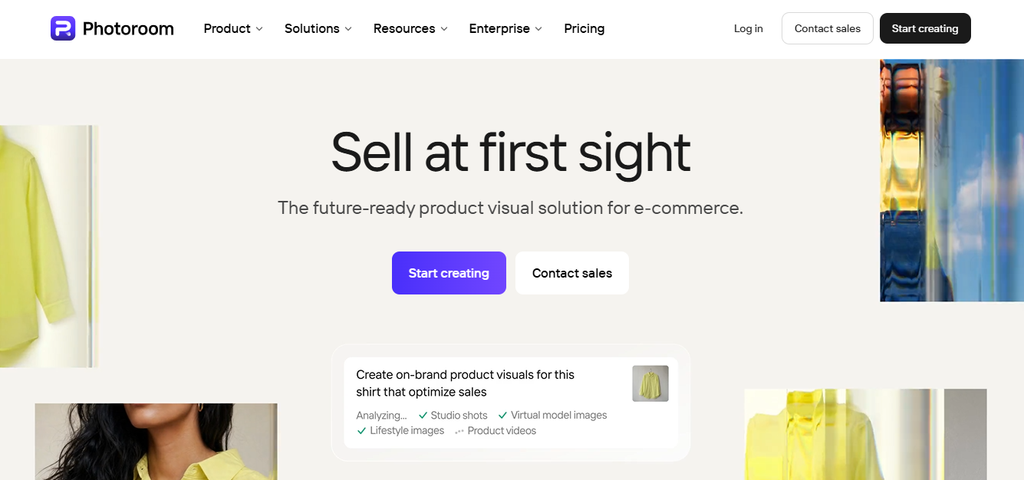
Photoroom is more than a simple online background remover. Its platform combines background removal with product-image editing, batch workflows, AI backgrounds, and other ecommerce features.
Its current Pro plan includes 8,000 AI credits and 1,000 exports per month when billed yearly. Max increases that to 25,000 credits and 3,000 exports. Ultra provides 75,000 credits and 10,000 exports. Background Remover is included as a core tool on these paid plans.
One useful distinction is that background removal does not consume AI credits. Exports, however, count toward the plan’s export allowance.
Pros
- Strong ecommerce workflow
- Batch editing on paid plans
- Background replacement and product tools
- Large export allowances on higher plans
- Useful for product catalogs
Cons
- The free plan has restrictions
- Pricing varies by region
- Advanced features require paid plans
Best for you if you manage ecommerce products or frequent product campaigns.
For a more detailed look at its features, pricing, and overall performance, see our Photoroom review 2026.
2. Adobe Express — Best Free Option
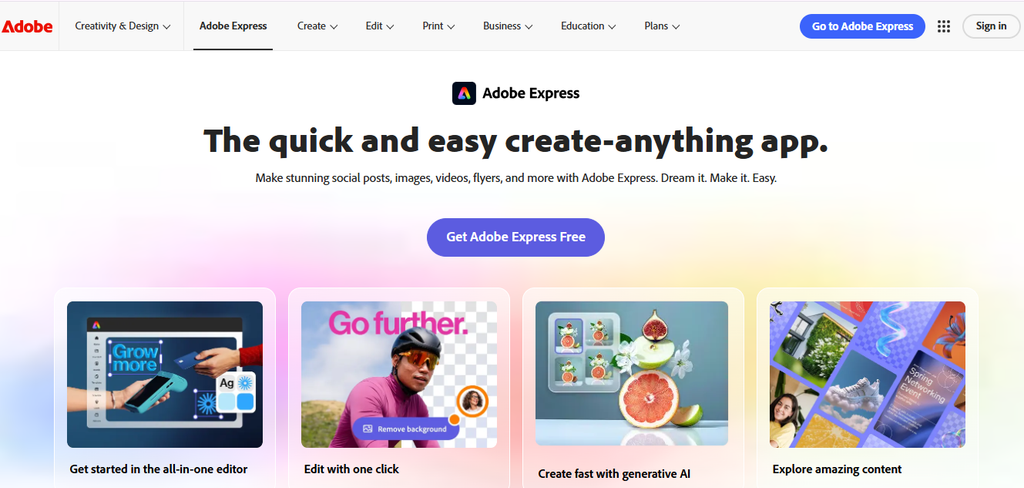
Adobe Express is one of the easiest places to start if you need free background-removal functionality. Adobe states that its background-removal tool is free. No credit card is required. It supports JPEG, JPG, PNG, and WebP files up to 40MB.
The free Adobe Express plan costs $0. Its Premium plan is currently listed at $9.99 per month.
The main advantage is workflow simplicity. You can remove the background and continue editing the image inside Adobe’s design environment.
Pros
- Free background removal
- No credit card required
- Transparent PNG output
- Simple interface
- Useful editing tools
Cons
- Complex edges still need checking
- The free plan has broader feature limits
- Less specialized than ecommerce-focused platforms
Best for you if you need occasional background removal without paying immediately.
3. remove.bg — Best for Dedicated Removal
Remove.bg focuses heavily on one core task: removing image backgrounds.
Its free website option provides low-resolution previews. High-resolution downloads use credits. The current subscription starts at $9 per month for 40 credits, while pay-as-you-go credits start at $3 for three credits.
One high-resolution image requires one credit. Free previews are limited to 0.25 megapixels. That pricing model makes remove.bg interesting for users who do not want a large design suite.
Pros
- Focused background-removal workflow
- High-resolution exports available
- Bulk editing and API options
- Pay-as-you-go pricing
- Easy to use
Cons
- High-resolution downloads require credits
- Free previews are low resolution
- Fewer complete design features
Best for you if background removal is the main task and you already have another editor.
4. Pixelcut — Best for Product Creators

Pixelcut combines background removal with product-focused image editing.
Its Free plan includes limited background removal and watermark-free exports. Pro is currently $8 per month when billed yearly, with unlimited background removal, unlimited upscaling, 1,000 monthly batch exports, and a commercial license. Business is listed at $24 per month when billed yearly.
This makes Pixelcut particularly interesting for smaller ecommerce sellers and social-media creators.
Pros
- Unlimited background removal on Pro
- Batch exports
- Product-focused workflow
- Upscaling included
- Commercial license on paid plans
Cons
- Free removal is limited
- Advanced AI features use credits
- Pricing can vary by platform
Best for you if you create product visuals frequently but do not need a large enterprise workflow.
5. Canva — Best for Complete Designs
Canva is a strong choice when background removal is only one part of your project.
The free plan costs $0. Canva Pro is currently listed at $180 per year for one person on its US pricing page. Pro includes premium tools such as background removal, along with templates, stock assets, and other design features.
This makes Canva less about standalone cutouts and more about what happens afterward. You can remove a subject, place it into a thumbnail, create a social post, or build a promotional graphic without switching applications.
Pros
- Excellent design workflow
- Background removal is included with Pro
- Huge template library
- Useful for social and blog graphics
- Strong editing capabilities
Cons
- Background removal is not its only focus
- Pro is needed for the removal feature
- Dedicated tools may suit advanced cutout work better
Best for you if you want to remove a background and immediately create a finished design.
6. Clipdrop — Best for Broader AI Editing
Clipdrop is useful when background removal is only one part of your workflow.
Its free plan currently provides up to 20 background removals per 24 hours. The Pro plan increases access to high-resolution background removal and other AI editing tools.
You can also use tools for cleanup, upscaling, relighting, and background replacement.
Pros
- Several AI image tools
- Free background removal allowance
- High-resolution removal on Pro
- Useful creative workflow
Cons
- More complex than a dedicated remover
- Free limits apply
- Pro pricing is not clearly displayed on the public pricing page
Best for you if you need background removal alongside other AI image-editing tools.
What to Test on Your Own Images: Which Tool Handles Difficult Images?
A simple product photo does not reveal enough. For your own comparison, use the same images with every tool.
Hair and Fur
Check individual strands, curls, fur, and halos.
Transparent Objects
Test glass bottles, sunglasses, and clear packaging. Look for missing sections or unnatural edges.
Low-Contrast Products
Try a light product against a similarly colored background. This reveals whether the tool can separate subtle boundaries.
Shadows and Small Details
Check straps, wires, handles, gaps, and natural shadows.
| Test | What to Check |
| Product | Clean overall cutout |
| Hair | Fine strands |
| Glass | Transparency |
| Low contrast | Edge separation |
| Shadows | Natural appearance |
Important: Add your actual before-and-after screenshots here. Do not claim that one tool “won” unless you have tested the same image set yourself.
Once your product images are ready, you can also turn them into short-form promotional content using AI video editors.
Free vs Paid AI Background Removers
A free tool is usually enough for occasional images.
Choose free when you:
- Edit only a few images.
- Need simple transparent PNGs.
- Do not require batch processing.
- Can accept export limitations.
Paid tools make more sense when you:
- Process product catalogs.
- Need high-resolution exports.
- Edit images frequently.
- Need batch workflows.
- Require commercial-use features.
The cheapest plan is not always the best value. Compare exports, resolution, credits, batch limits, and commercial rights before subscribing.
Common Background Removal Mistakes
Avoid these mistakes:
- Using low-resolution source images
- Trusting the preview without zooming in
- Ignoring halos around edges
- Testing only simple products
- Removing useful natural shadows
- Assuming “free” means unlimited
- Processing large batches before testing
- Ignoring commercial-use restrictions
The biggest mistake is judging a tool only by speed.
A five-second cutout is not efficient if you spend two minutes fixing it.
AI Background Remover vs Manual Editing
Manual masking still offers greater control. Photoshop and similar editors remain useful for complicated edges and professional retouching. AI wins when repetitive removal is the main problem.
For many workflows, the best approach is hybrid: AI removes the background → you inspect the edges → fix small defects → export. That gives you automation without blindly trusting the result.
If your finished product photos are headed into short-form video content, Pictory AI and Revid AI are both built for turning static images into videos. Pictory leans toward longer-form, narrated content; Revid is geared more toward fast, short-form social clips. Either is worth a look once your cutouts are ready, rather than before.
Final Verdict
There is no single best AI background remover for everyone. Photoroom is my strongest recommendation for ecommerce workflows. Adobe Express is the best starting point for free removal. Remove.bg is dedicated to background removal, while Pixelcut offers a strong product-editing workflow. Choose Canva if your cutout immediately becomes part of a larger design. Choose Clipdrop if you want several AI image tools in one workflow.
The most important lesson is simple: test your hardest image before paying. Check hair. Test glass. Try low-contrast products. Inspect shadows. Then compare the final exported image at full size.